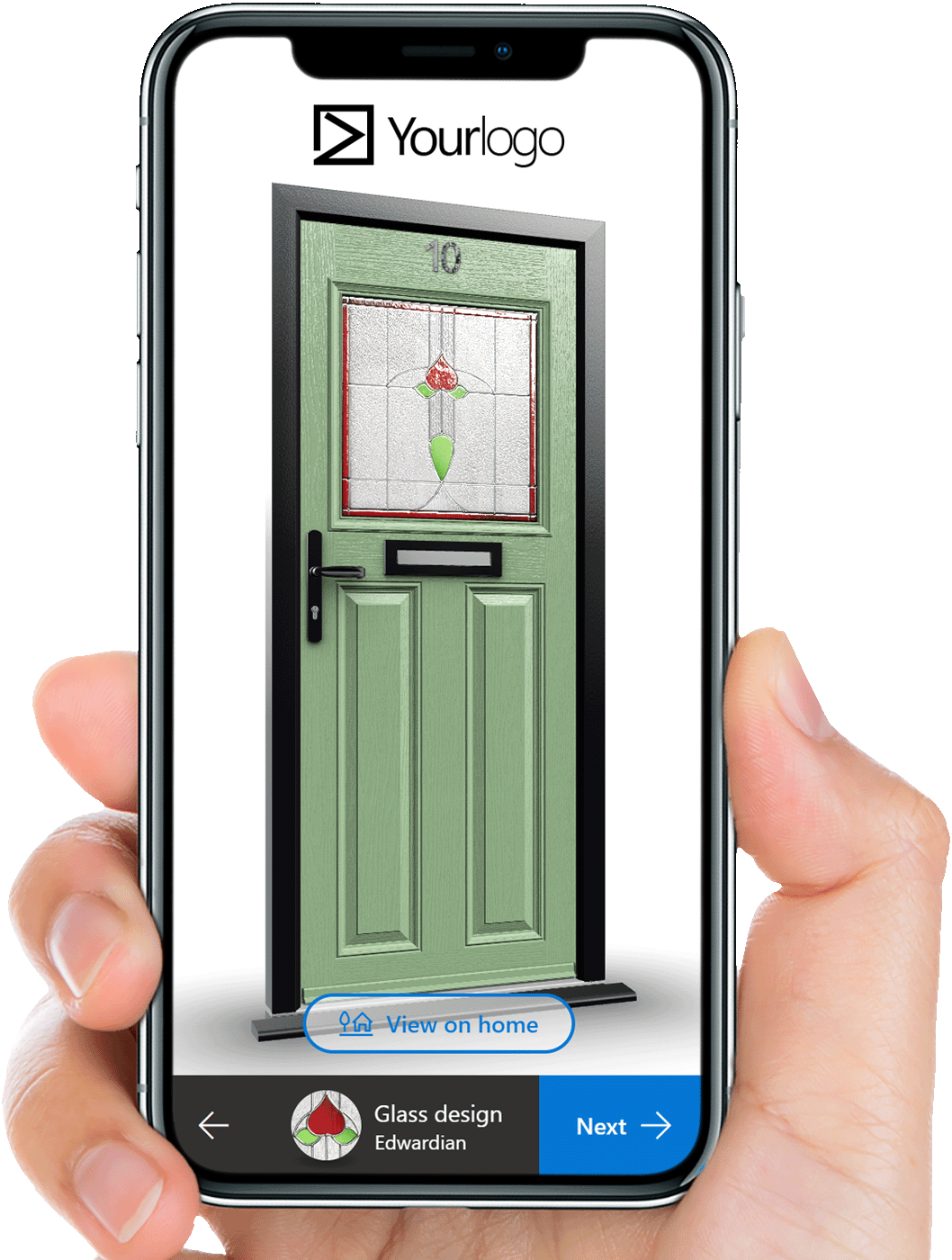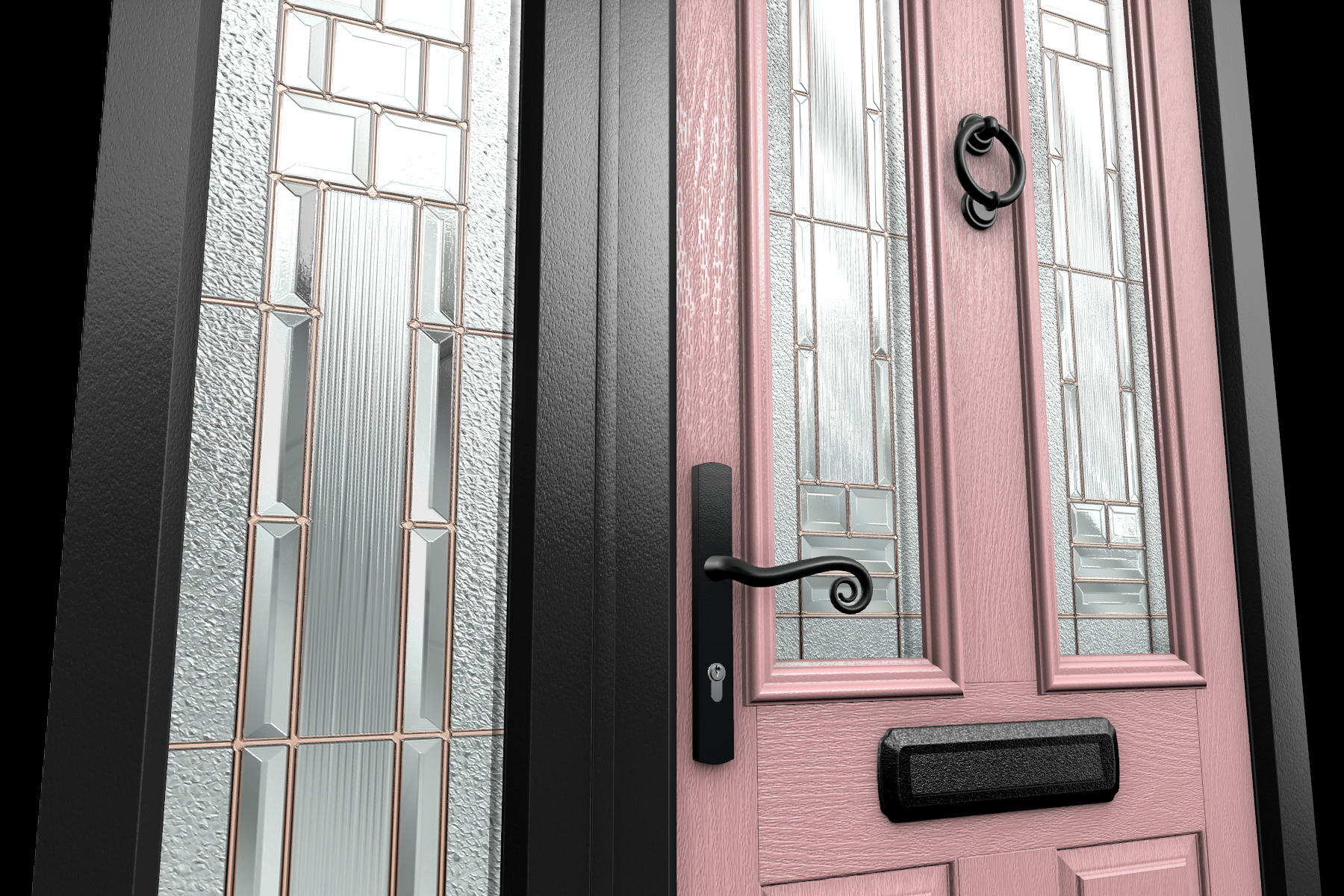
Matching glass beyond the door
Select the glass, open Glazing and go to the Decoration tab. The Image design section lists the designs available for that glass, each with a thumbnail. Pick one and WindowCAD® 7 chooses the closest image size for the opening and fits it to the visible glass.
You can select a composite door and its sidelights together and apply a design they both offer in one go.
If there is no image close to the size of the opening, a short note shows the size of the glass and of the nearest image. You can still use the design, and the image is scaled to fit.
Offer only the designs you sell
The image library is large, so you decide what your customers see. Designs are now grouped into reusable collections under Settings → Products → Glazing → Image designs:
- Use Door and Frame and sash under Hidden to show the available designs for doors, frames and sashes, or both.
- Pick a supplier, then move designs between Hidden and Visible with Show and Hide.
- Reorder the visible designs, or use Sort by name.
- Use Rename to give a design the name you sell it under.
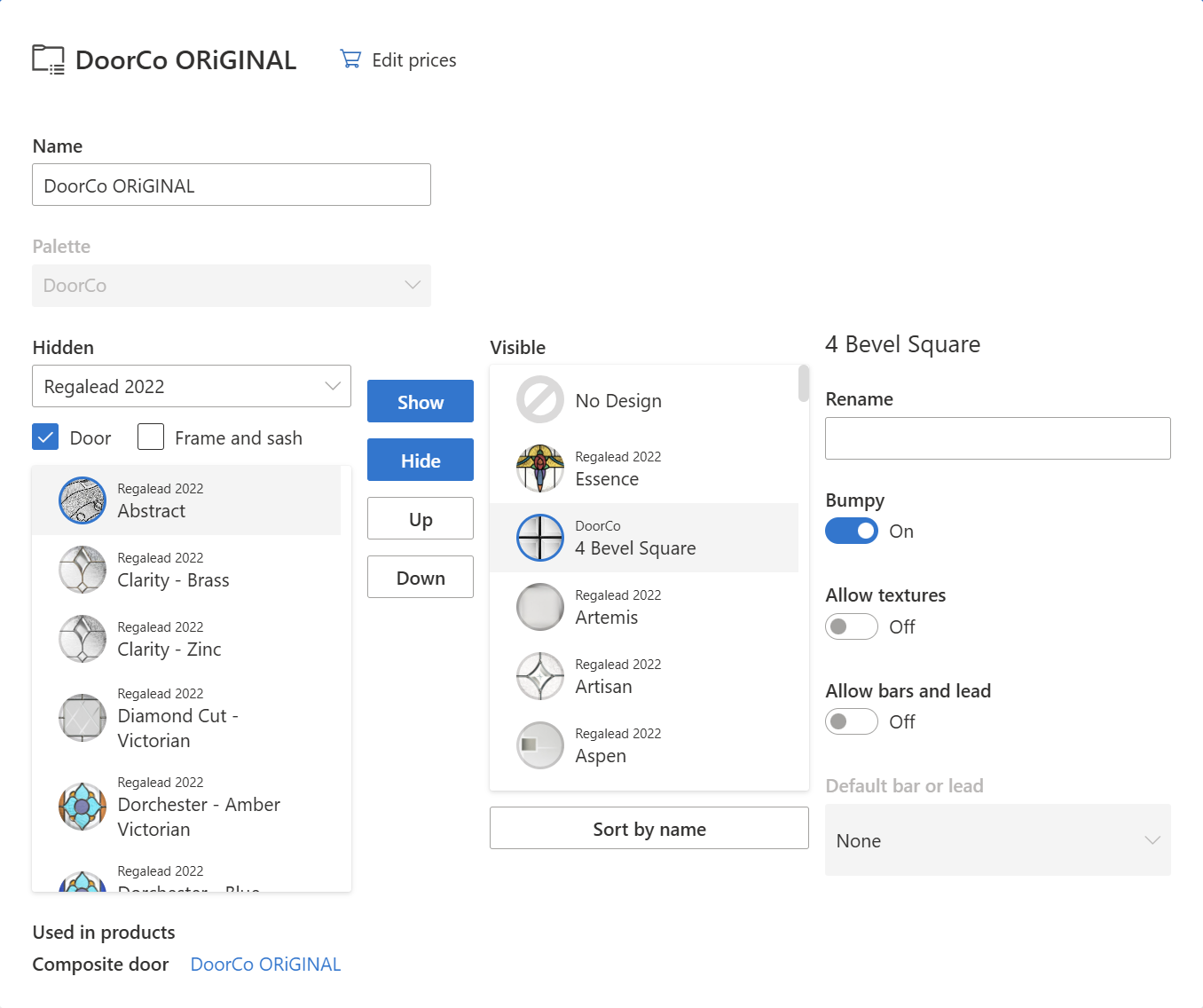
One collection can be shared by several products, so a range is set up once and reused.
Pricing designs on glazing
Designs used on sidelights, windows and other glazing have their own prices, set for each collection. Go to Settings → Pricing → Glazing → Image designs and choose the collection, or use Edit prices on the collection's page. Each design can have a Lump sum, a Square metre rate and a Minimum area, and the charge is added to the price of each piece of glass that uses it.
These prices are separate from composite door design prices, which stay with each composite product under Collection prices.
Where the glazing settings are now
Making designs shareable meant reorganising the glazing settings. If something is not where you left it, this is where it went:
- Image designs have moved out of each composite product and into Settings → Products → Glazing → Image designs, as shared collections.
- Each composite product has a new Glazing image designs page under Composite doors. Choose the product's Image design collection there, then select a design and tick the door styles that offer it. Only door styles with images for that design are listed, and Enable all ticks every one.
- Frame and sash products have an Image design collection setting on their Glazing tab. It only controls which designs can be chosen for that product's glass, and nothing is added until you pick a design on a job. Frames default to Automatic, which offers the designs from the composite door in the same frame, so a sidelight can be matched to its door when the customer wants it. Sashes default to Use frame. Choose None to offer no image designs, or pick a collection.
- The old Designs section is now Decorations, with Astragal, Georgian, Lead and Sandblasted each in their own palette, plus Collections. Its pricing tab has been renamed to match.
- Custom images have their own page under Glazing, and their own pricing tab.
- In a project, the glazing tabs are Spec, Decoration and Texture. Decoration holds Image design and Other decoration, which covers bars, lead and sandblasting.
Your own images
For a customer's own artwork on a single job, add a custom image under Glazing → Custom images with a name, description and price. Then show it in a collection by choosing Custom images in the supplier list. Upload image then appears in the Image design section for products using that collection.
The image is kept in the browser you uploaded it in, and is marked Saved in this browser only. If the project is opened on another computer, WindowCAD® 7 asks for the image to be uploaded again. Use the delete icon to remove it from the browser.
Existing accounts
Your existing composite door designs have been moved into a collection named after each product, with their door style selections and prices kept. No extra designs have been switched on.
Sidelights and other glazing are not changed. Because frames default to Automatic, the designs in a composite door's collection can be chosen for glass in the same frame, but the glass stays as it is until you pick one. Glazing elsewhere offers no image designs until you give its product a collection.
Designs on ordinary glazing start with no price. Set them under Pricing → Glazing → Image designs before you quote a design on a sidelight or window.