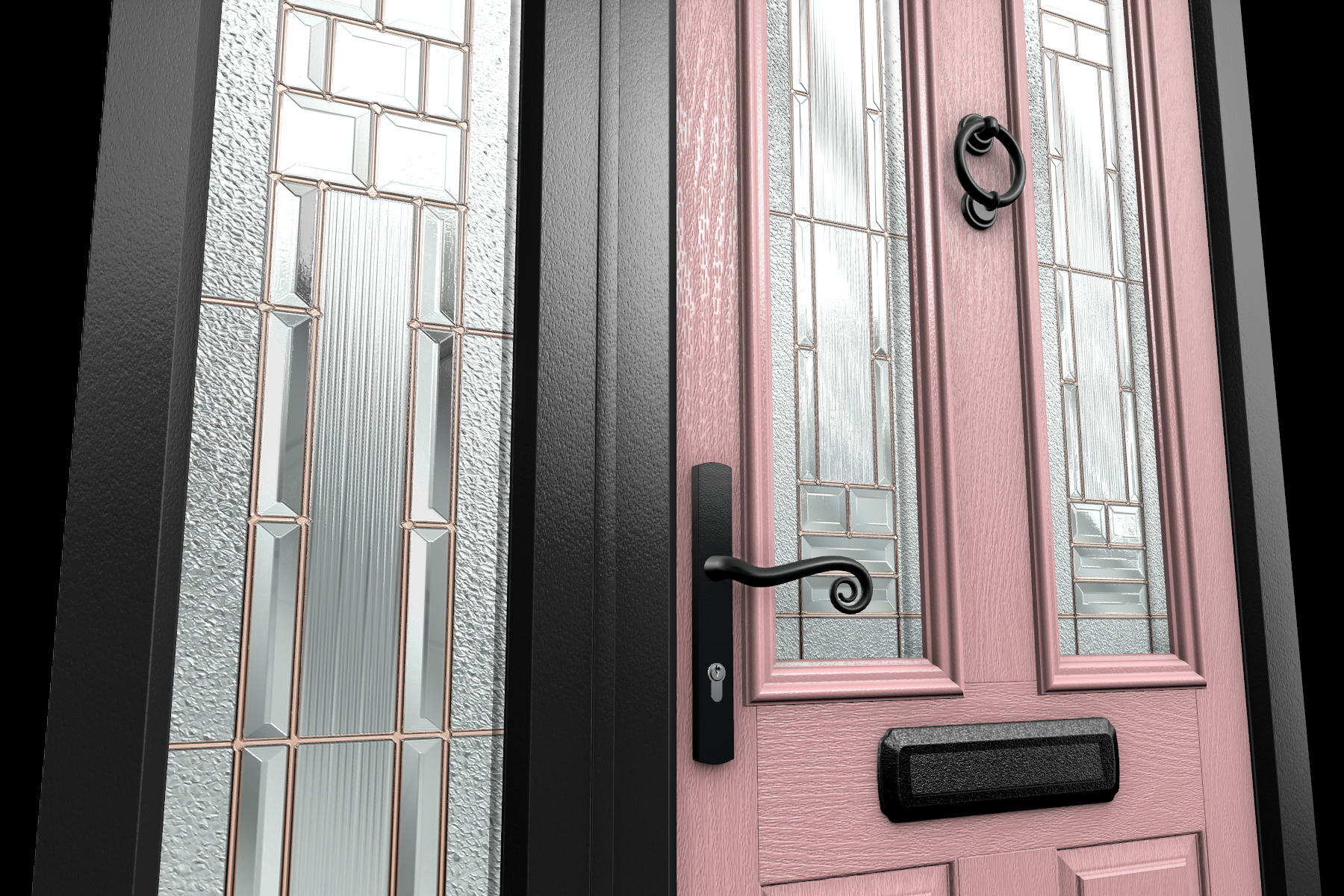
Switch it on for each design
Open Settings → Products → Glazing → Image designs, choose a collection and select a design in the Visible list:
- Allow bars and lead lets Astragal, Georgian and lead styles sit over that design. It is off until you turn it on, so your existing designs behave as they did before.
- Default bar or lead is the style added automatically whenever the design is chosen. In the example below, Waldorf - Victorian starts with Regalead Victorian bars.
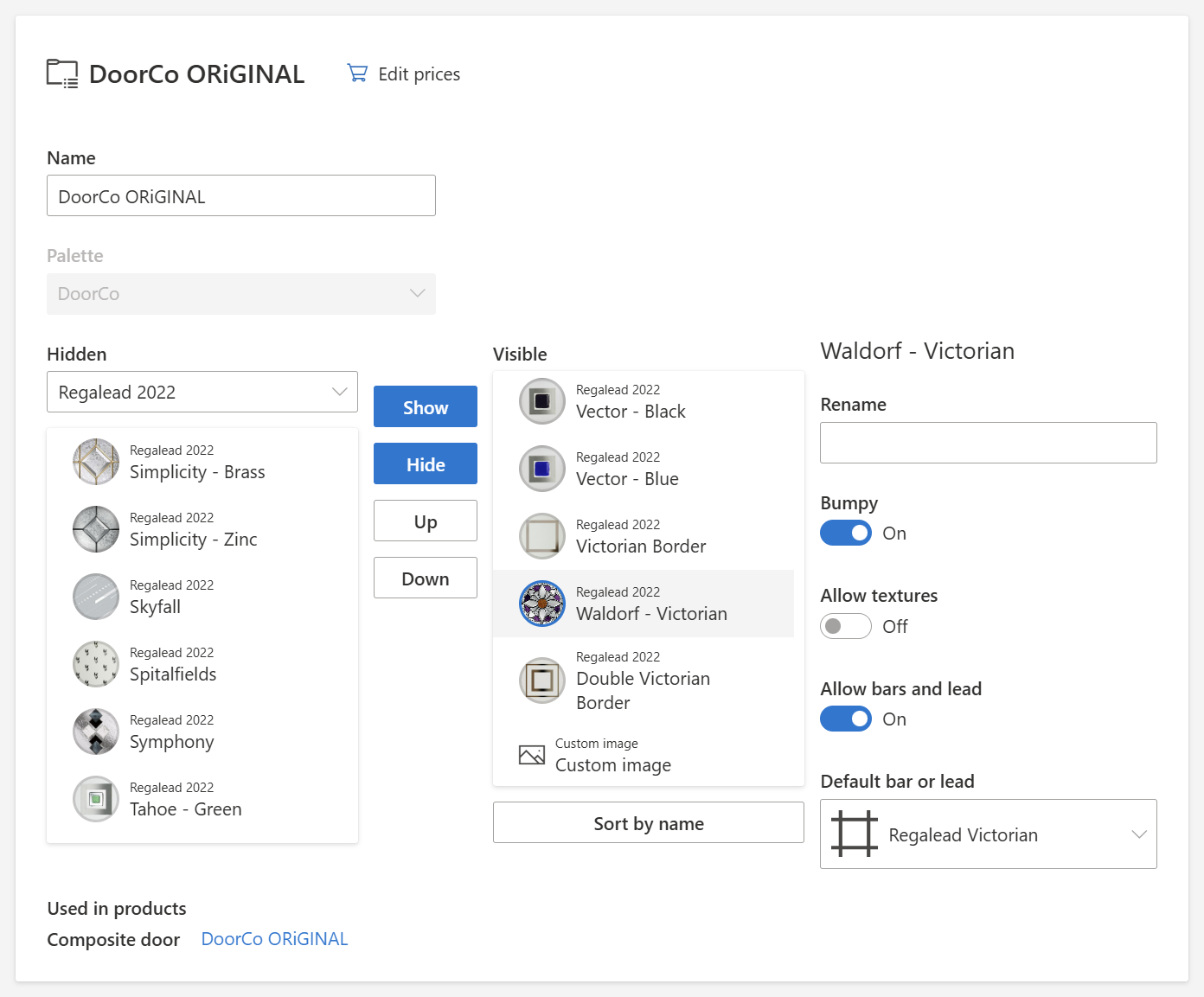
A new Bumpy switch sits above them. It uses the image itself to add surface relief to the glass, and it is on by default.
Choosing a design in a project
On the Decoration tab, pick the design under Image design. If it has a default, the bars or lead are added with it. You can then change the style, colours and spacing under Other decoration as normal.
If a design does not allow bars and lead, those styles are hidden while it is selected, and choosing it removes any already on the glass. Sandblasting and other decoration stay available.
Each piece of glass keeps its own combination, so a door and its sidelights can share a design while carrying different bars. Where the selected glass differs, the setting shows Mixed.
Bars that match the door
Astragal and Georgian bars on a composite door can take the door's colour. Turn on Allow matching door colour on the bar style under Glazing → Decorations, and new bars pick up the door colour inside and out, woodgrain included.
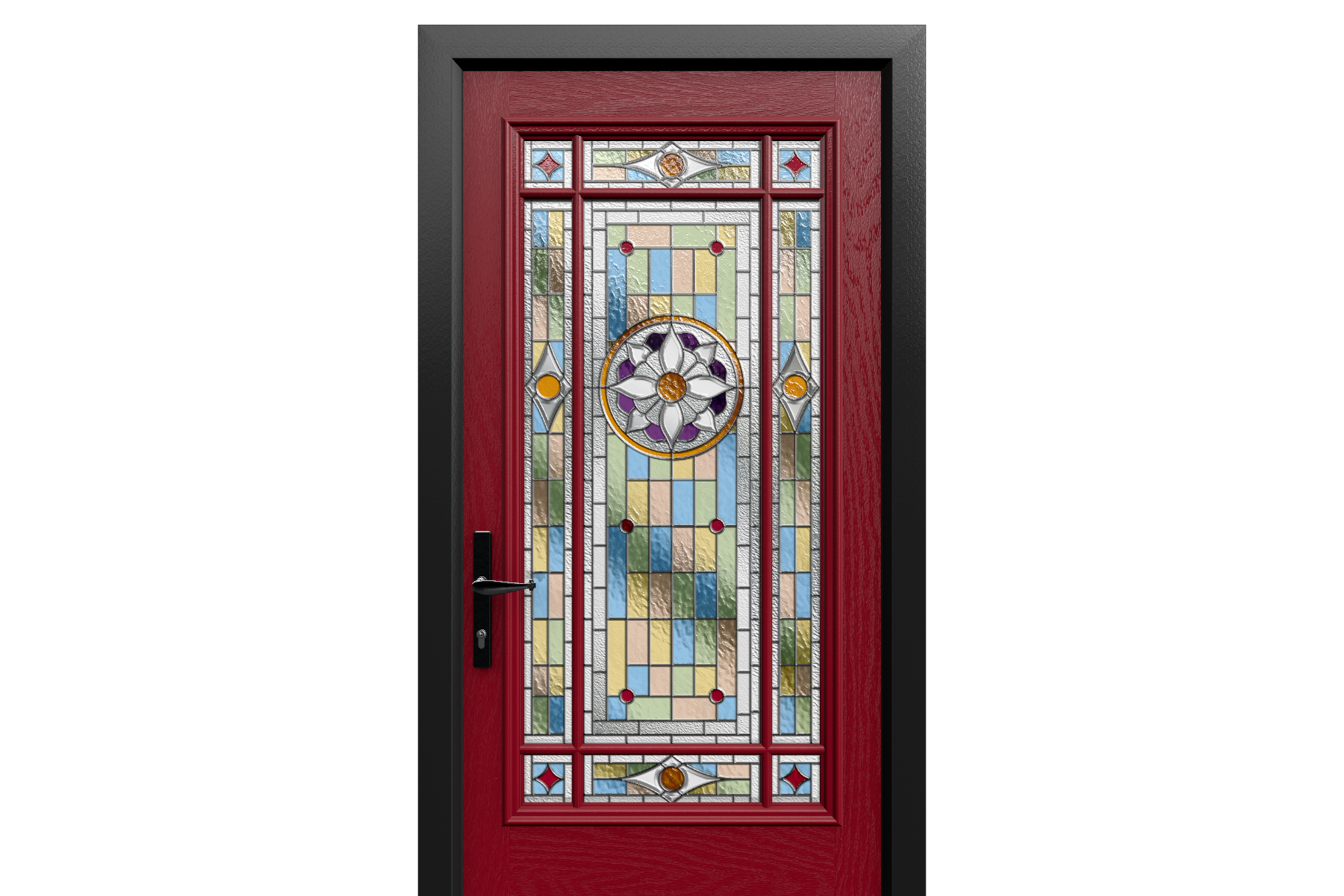
The colour list gains an entry for the door colour, such as Red (door), and the bars follow the door if its colour changes. You can still choose any other colour.
Astragal bars on composite doors also now split the spacer bars, as they already did on ordinary glazing.
Resetting spacing
A composite product's Glazing tab has a new Clear decoration spacing overrides button. It puts bar, lead and sandblasted spacing on all of that product's door styles back to each style's default.
What to do
Bars and lead over designs stay off until you allow them. Go through the designs you sell with bars, turn on Allow bars and lead and choose the default. For a design already on a job, select it again to pick up the new default.